
Litter Tracking Software: One Litter From Breeding to Go-Home Day
By Kenny SchultzLast reviewed
Litter tracking software keeps one record per litter, from the breeding date to the last puppy's go-home day. In BreederBuddy that record holds the sire and dam, a due date from Date Bred (61 days unless you change it), the dam's whelping temperatures, each puppy's collar color, weights, health records and buyer, and the litter's income and expenses.
Key takeaways
- Open the litter record the day you breed: the due date, the pregnancy on your planner and the whelping watch all count from the Date Bred.
- Give every puppy its own record and collar color within hours of birth, and put the cards in birth order, so weights, dewormings and buyers attach to one puppy.
- Weigh newborns daily for the first two weeks, then every three days until a month old, and call your vet about any puppy that stops gaining.
- Apply one care schedule per litter on whelping day, then log each deworming or vaccine for every puppy at once when you mark it done.
- Tie the stud fee, progesterone tests, vet bills, deposits and balances to the litter, so you know what each litter cost and earned.
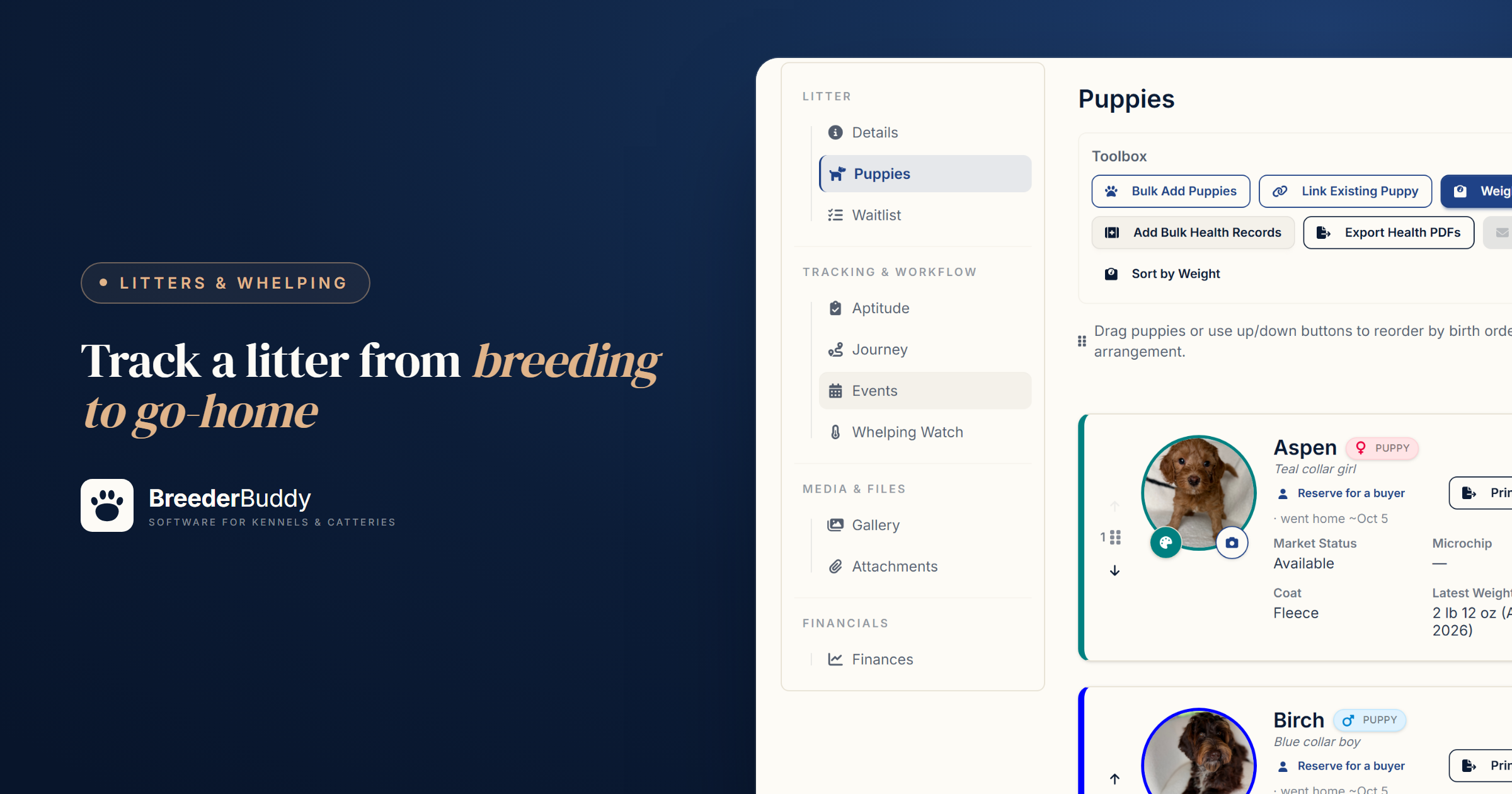
Litter tracking software keeps one record per litter, from the breeding date to the day the last puppy goes home. That record holds the sire and dam, the due date, the dam's whelping temperatures, each puppy's collar color, birth order, weights and health care, the buyer for every puppy, and what the litter cost and earned.
A whelping notebook, a weight chart on the wall and a calendar work fine until the week everything happens at once. Below is what a complete record holds, then one litter in BreederBuddy, screen by screen.
What a complete litter record holds
A litter record is opened at the breeding, filled in as things happen, and kept long after the puppies leave. The AKC's record-keeping regulations set a useful minimum. For the mating: the date and place, and the registered name and number of the other dog and its owner. For the litter: the whelping date, the litter registration number, the number of puppies by sex and by color and markings, and for each puppy who got it (name and address), when, and with what papers. Records are meant to be made at the time and kept at least five years after the dog dies or leaves your hands. Electronic records count if you can print them as soon as the AKC asks. Other registries set their own rules.
Three habits make the rest of the record trustworthy:
- Treat the due date as a window. The Merck Veterinary Manual puts dog gestation at 58 to 72 days from the breeding when the stage of the heat is unknown, and 62 to 64 days from ovulation. Progesterone timing narrows it.
- Tell puppies apart from the first hour. Collar color, sex, color and markings, birth weight and birth order for each one.
- Weigh on a schedule. Merck recommends daily weights for the first two weeks, then every three days until a month old. Puppies should gain steadily after the first day (a loss of up to 10% on day one is acceptable). A puppy that stalls is a call to your vet.
What to record at each stage, and where it lives in BreederBuddy:
| Stage | What to record | Where in BreederBuddy |
|---|---|---|
| Breeding | Date bred, sire and dam, due date | Details |
| Last week of pregnancy | The dam's temperature, a few times a day | Whelping Watch |
| Whelping | Birth date; each puppy's sex, color, collar color, birth weight and order | Details and Puppies |
| Weeks 0 to 4 | Weights, ENS and ESI | Weigh All, Neonatal Check-In |
| Weeks 2 to 8 | Dewormings, vaccines, vet checks | A care schedule, each puppy's Health tab |
| Placement | Buyer, deposit, balance, pickup | Puppies, Waitlist, Journey and Finances |
Step 1: Open the litter record at the breeding
Create the litter the day you breed, with its status set to Planned, so the due date and the pregnancy show from that day on.
- Go to Litters and click Add Litter.
- Enter a Name and set Status to Planned.
- Enter the Date Bred. The estimated due date appears right under it: 61 days from the breeding unless you click Change and set your own gestation length for the whole program.
- Under Parentage, pick the Sire and Dam. For an outside stud, click Select a Sire, then Add a new outside sire.
- Click Save.
Logged the breeding on her Heat Cycles tab? Its What's next for this breeding? prompt offers Create the litter, with the parents and date filled in. If you timed it with progesterone, the heat cycle also shows a refined due date: ovulation plus 63 days.
From then on she shows as pregnant on the Litter Planner, and the due date is on your calendar. Link your waitlist now too, with Link Waitlist on the litter's Waitlist tab.
Step 2: Whelping watch and birth day
The dam's temperatures go on the litter's Whelping Watch tab, which flags the drop for you. Click Add Reading and log her temperature a few times a day in the last week or two. BreederBuddy averages her normal readings into a baseline and flags a reading under 99°F, or a full degree below that baseline, as the drop that usually means labor within about 24 hours. Merck describes most dogs dropping to 98.1 to 100°F in the 8 to 24 hours before whelping; the full method is in our whelping watch guide.
When the puppies arrive:
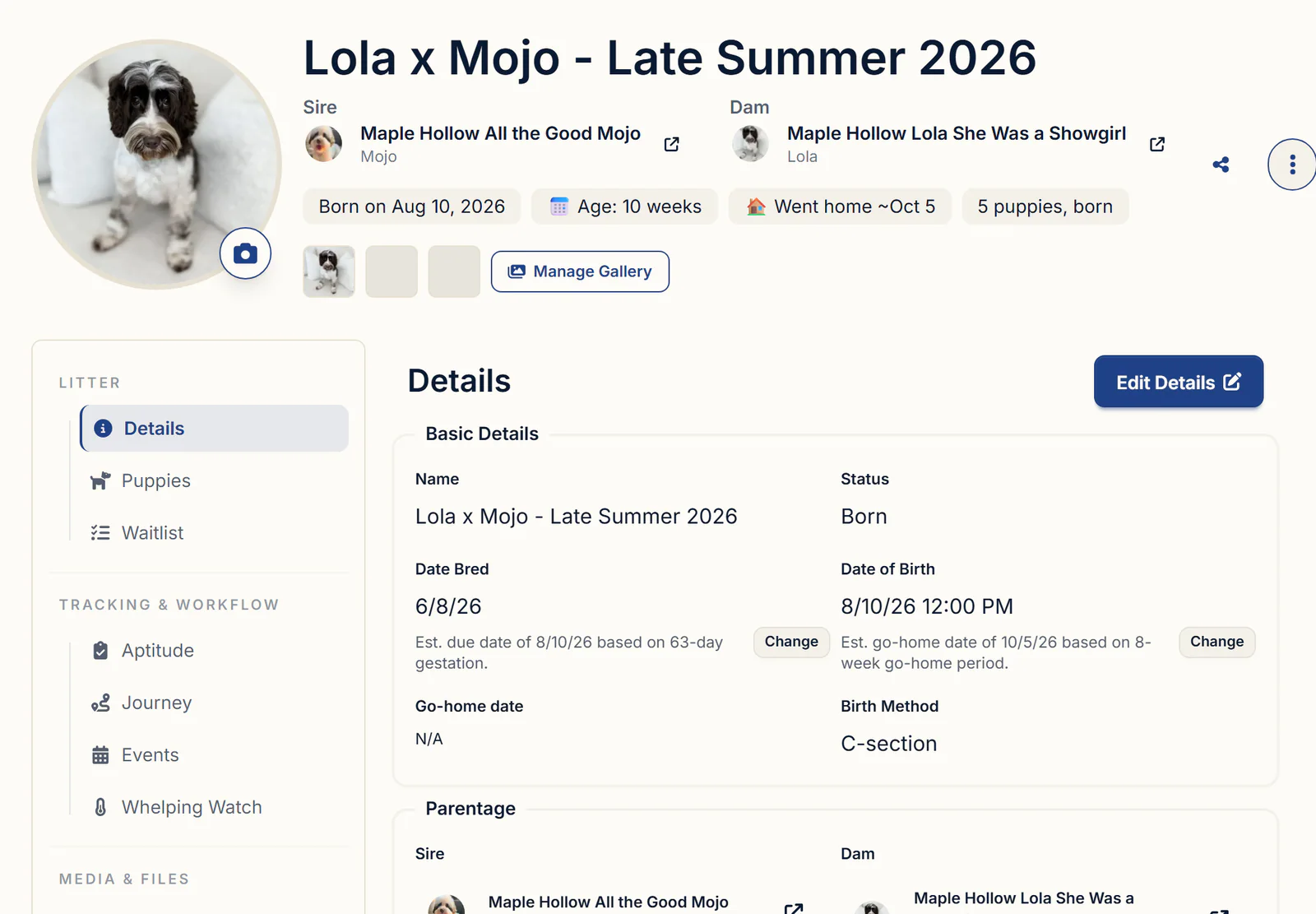
- Open the Details tab and click Edit Details.
- Set Status to Born, fill in the Date of Birth, and pick the Birth Method.
- Click Save. Change the birth date later and every puppy's date of birth follows.
The birth date also starts the go-home estimate: birth plus your go-home age, 8 weeks unless you change it in Settings → Preferences. Until you set a real date, it shows with a tilde, like "goes home ~Dec 1".
Step 3: Puppies, collar colors and birth order
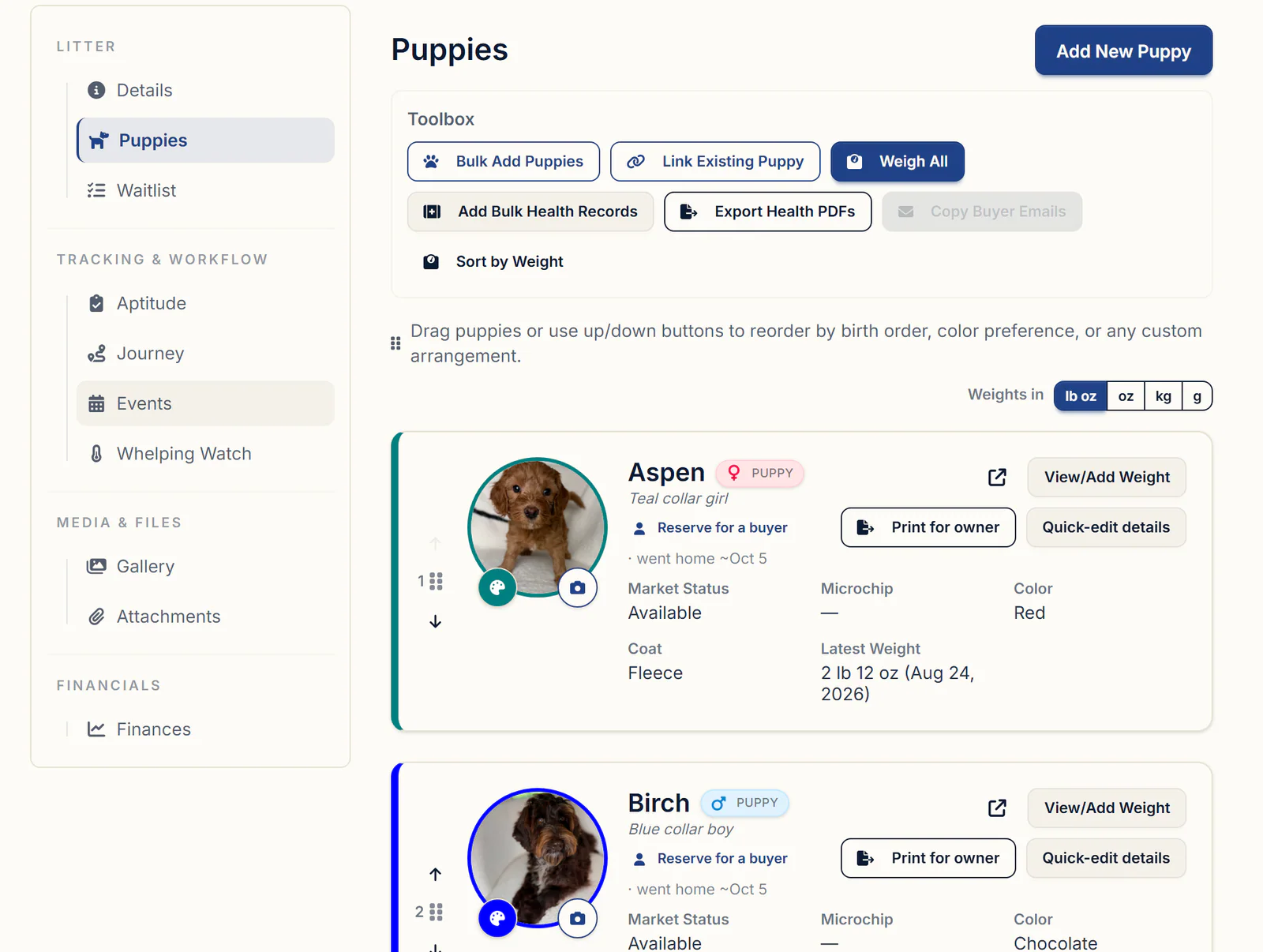
Give every puppy its own record on whelping day, so each weight, deworming and buyer attaches to one puppy.
- On the litter's Puppies tab, click Add New Puppy.
- Enter the Name and Sex, pick a Collar Color, and put the birth weight in Quick-add first weight.
- Click Create Puppy. The puppy is linked to the litter's sire, dam and date of birth.
For a big litter, Bulk Add Puppies in the Toolbox creates them all from a count of Males and Females, named like "Moonbeam Male Puppy 1" (change or clear the random Name prefix). Rename each one later with Quick-edit details, and click the colored dot on a puppy's photo (Set collar color) to change its collar color.
Then drag the cards into birth order (or use the arrows); each card shows its number. The neonatal check-in, the AKC Litter Record and forms you upload all follow that order.
Step 4: Weights and neonatal check-ins
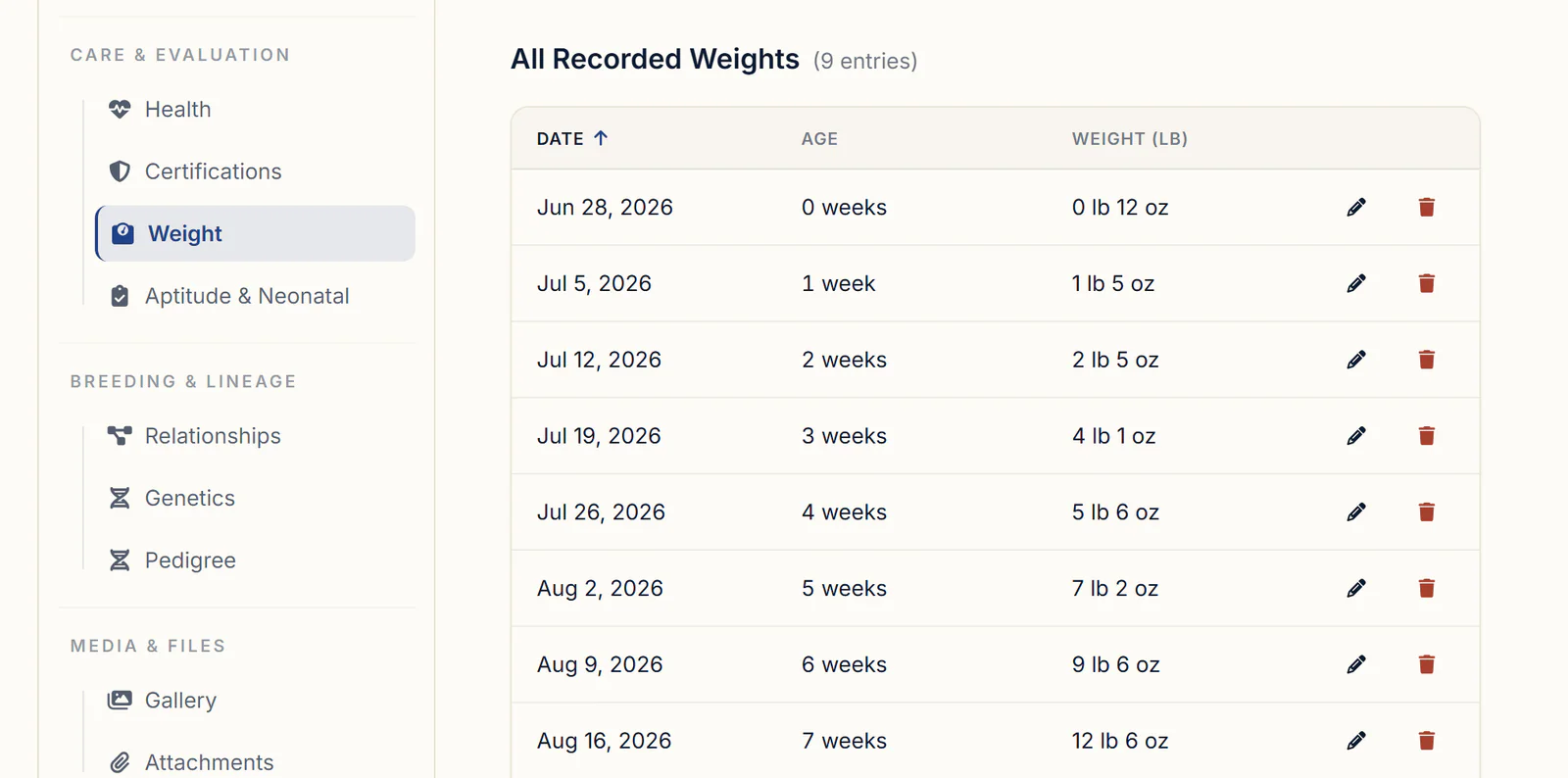
Weigh the whole litter in one window, and use the daily check-in for weights, ENS and ESI in the first two weeks.
- Weigh All in the Toolbox opens one row per puppy. Pick the weigh-in date, type each weight and save once; blank rows are skipped.
- Neonatal Check-In on your Dashboard lists every litter marked Born (add the section with the sliders icon if it isn't there). Click Check In and a carousel steps through the puppies with their photo, collar color and place ("1 of 5"). Log the weight in pounds and ounces, the ENS stimulus and reaction, the ESI scent and reaction, and Handled By, then click Save Check-In. ENS and ESI run day 3 through day 16, and the Previous day arrow fills in a missed day.
Every weight lands on the puppy's Weight tab, charted and listed. On the Puppies tab, Weight tracking charts the whole litter and Export Weight Report downloads it as a PDF. More in puppy weight tracking.
Step 5: Dewormings, vaccines and health records
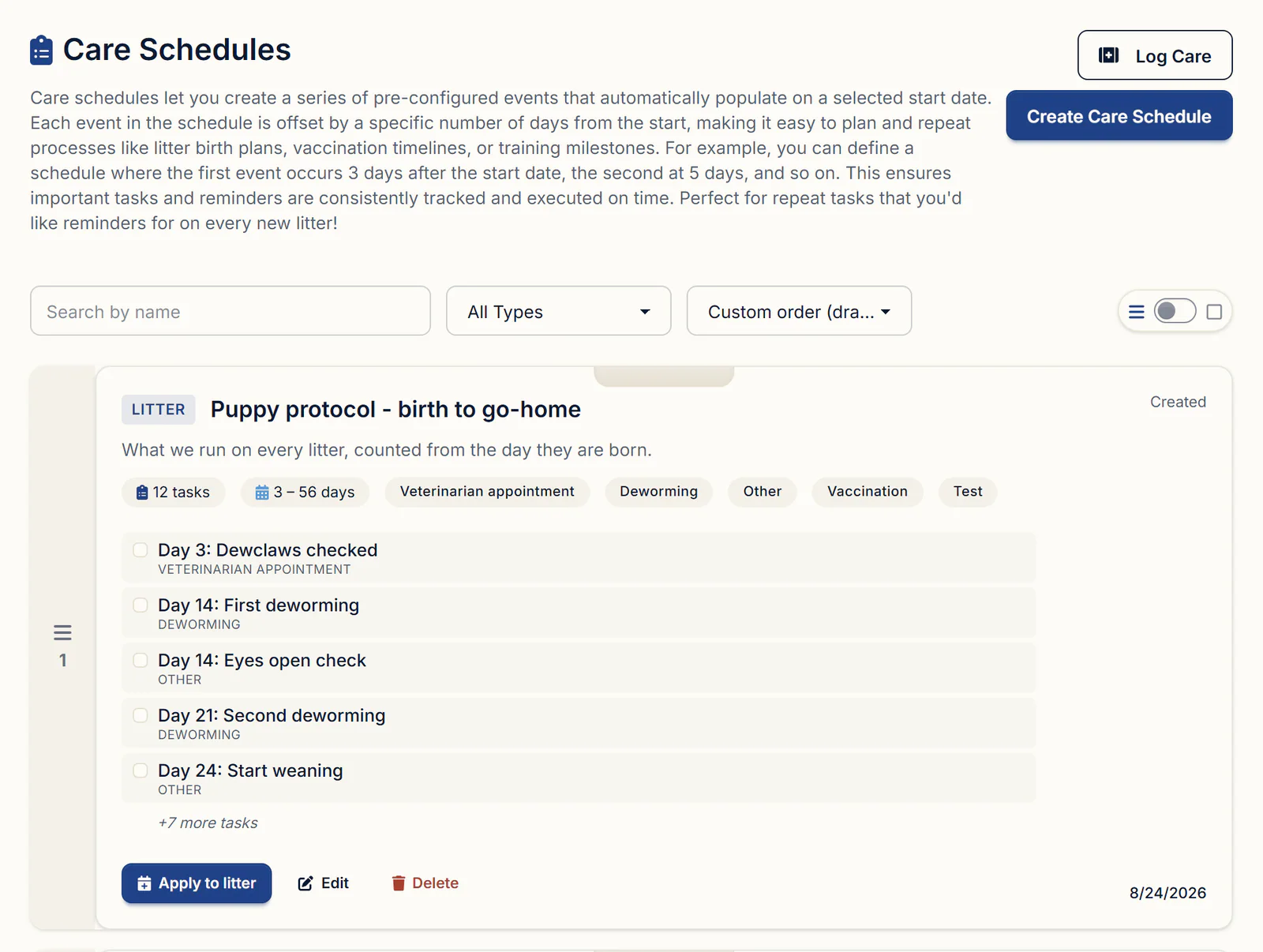
Build the litter's care protocol once as a care schedule, apply it on whelping day, and every deworming and vaccine lands on your calendar.
- In Care Schedules, click Create Care Schedule and start from the Puppy Vaccination & Deworming template or a blank Litter schedule. Set each task's Days from start (week 2 is 14, week 6 is 42), and check the timing and products with your vet; our puppy deworming and vaccination schedule explains a typical protocol.
- On the litter's Events tab, click Apply Schedule to this Litter, pick the schedule and set the Start Date (Day 0, usually the whelping date).
- Each task becomes an event on the litter and your calendar. Tasks with Email Notification? ticked also send an email reminder.
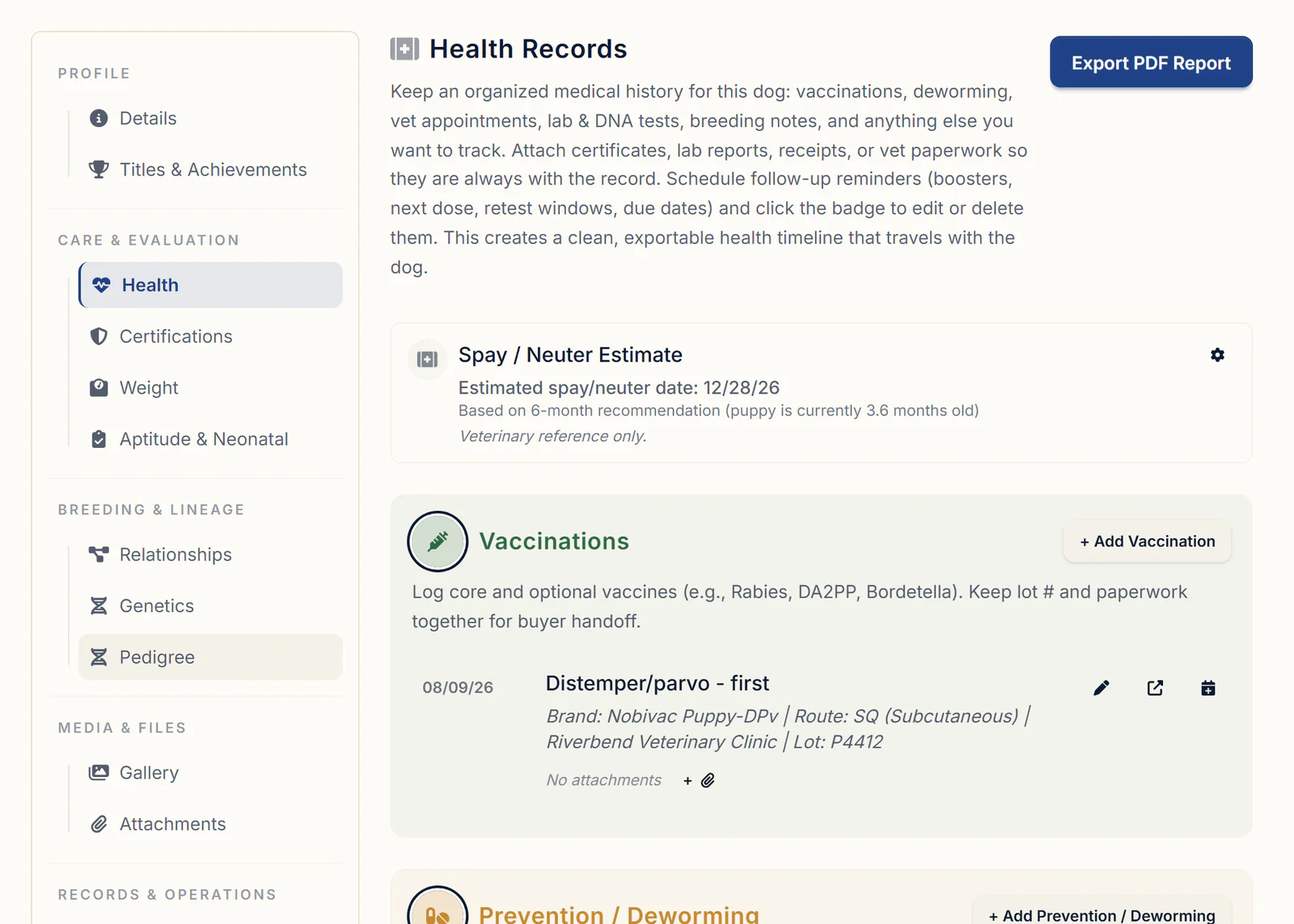
When you give the dose, click the event on the calendar and choose Complete. Tick Create Health Record, apply it to Litter (all puppies), and every puppy gets its own copy on its Health tab. For care that wasn't scheduled, Add Bulk Health Records on the Puppies tab does the same, with optional follow-up reminders.
Those records build the go-home packet: Print for owner on a puppy's card makes a PDF of its vaccinations, dewormings, vet visits and weights, and Export Health PDFs makes one for each puppy you pick.
Step 6: Buyers, reservations and updates
Keep the litter's buyers on the litter, and reserve each puppy to one person when you match them.
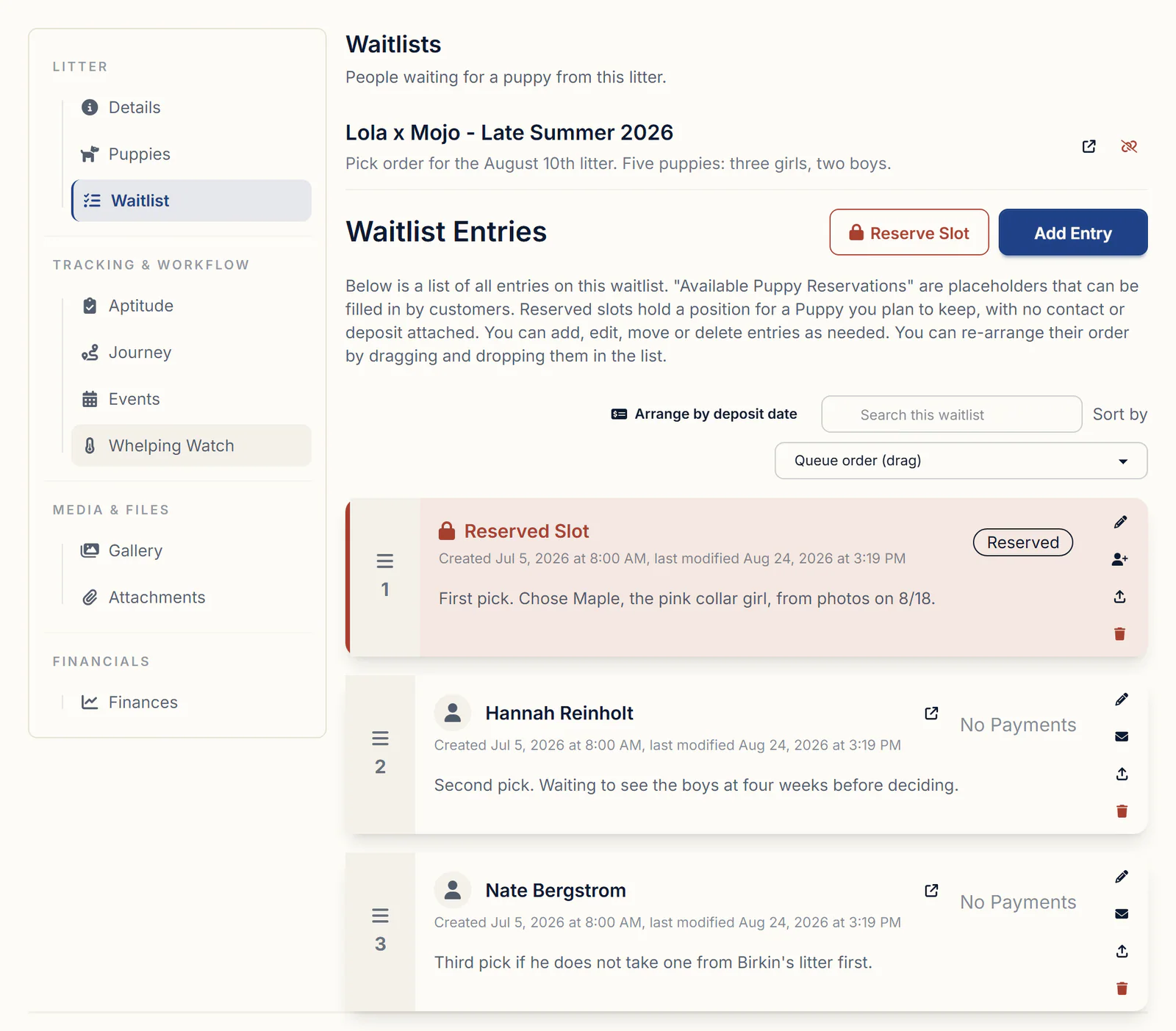
The litter's Waitlist tab shows the linked waitlist in picking order, with payment status and your notes; Reserve Slot holds a place with no buyer. A waitlist deposit holds a place in line; a reservation ties one buyer to one puppy. Running the picks is its own topic: puppy pick order.
- On the Puppies tab, click Reserve for a buyer under the puppy's name.
- Under Buyer, pick the contact and click Save. A new buyer needs a contact first, from Contacts.
- Click Mark as Reserved when BreederBuddy asks. For a Guardian Family contact it offers Retained instead.
The card then reads "Reserved for Sarah Miller · goes home Dec 1", and the buyer's contact card and your website show the same.
For updates, add photos to the litter's Gallery tab and to each puppy's own Gallery tab; a puppy's visible photos show in its buyer's portal. The Share icon next to the litter's name makes a private page with the photos, the parents and a card for each puppy, viewable without logging in for 90 days unless you change that. Copy Buyer Emails in the Toolbox copies every owner's address for one group email.
Step 7: Go-home day, the money and closing the litter
Set the real go-home date, schedule each pickup, and close the litter with one click when the last puppy leaves.
- Fill in Go-home date in the litter's Edit Details. The tilde goes away and the calendar, website and documents use that date. A puppy leaving on another day gets its own date in Quick-edit details.
- On the Journey tab, click Schedule Pickup for each puppy and pick the date and time. On pickup day, Mark Went Home sets the puppy to Went home (Sold).
- When the last one leaves, Mark All Puppies Went Home & Complete Litter finishes the litter. It never happens on its own. Then choose Archive litter from its three-dot menu; archived litters keep every record.
The litter's Finances tab shows what it did: Total income from paid invoices tied to the litter and its puppies, Total expenses, each invoice with its buyer and status, and a Parent Expense Summary for the sire and dam. Costs land there when you pick the litter in Apply to on each expense, like the stud fee, progesterone tests and the ultrasound. Plan the next one with the litter profitability calculator.
Closing a litter throws nothing away. Each puppy keeps its record in Dogs, Download PDF in the three-dot menu prints the litter, and Document Manager fills an AKC Litter Record from it.
What to look for in litter tracking software
Paper or software, a litter system should cover the whole litter in one place. Hold each option against this list:
- A litter record you open at the breeding, with a due date you can adjust
- The dam's whelping temperatures on the same record
- One record per puppy from birth, with a collar color and an order you control
- Weights, care schedules and health records you can handle for the whole litter at once
- Buyers tied to specific puppies, with the waitlist in view
- Income and expenses per litter, and records that stay after it's complete
- Records you can print the day a registry asks for them
Getting started
The litter tools in this walkthrough are on every plan. Standard is $30/month or $300/year. Pro is $60/month or $600/year and adds a kennel website built from your records, where any litter you mark Public? appears. Every plan has a 30-day free trial with no credit card required. More on the record side of your program: dog and breeding records.
Questions
How do I mark a puppy I'm keeping as held back or retained, without listing myself as the buyer?
Click **Quick-edit details** on the puppy's card and set **Market Status** to **Retained**. No buyer is needed. If she's staying as a future breeding dog, open her profile, click **Edit Details** and change **Type** to **Active Breeding Dog**. It's the same record, so she never shows up twice.
How do I keep reserved or sold puppies from showing as available on my website?
Reserve the puppy for its buyer and say yes to **Mark as Reserved**, or set **Market Status** in **Quick-edit details**. Your website then shows it as reserved, and a litter reads as available only while one of its puppies is still **Available**. To take a puppy off the site entirely, untick **Public?** on its profile or archive it.
How do I move puppies that have gone home off my main list without losing their records?
Archive them. Open the puppy, click **Edit Details**, tick **Archive from main workflow** and save. Archived puppies keep every record, come off your website, and sit in the **Archived, Retired & Deceased** section at the bottom of **Dogs**, where search still finds them. Marking a puppy **Went home (Sold)** on its profile offers to archive it for you.
How do I enter past litters from years ago so I know which puppy went where, its birthday and its mother?
Add the litter with its **Date of Birth**, **Sire** and **Dam**, then add the puppies on the **Puppies** tab. For dogs you already entered, use **Link Existing Puppy**, which gives them the litter's parents and birth date. Set each puppy's buyer and **Market Status** in **Quick-edit details**, then set the litter's **Status** to **Completed**.
How do I record a puppy that passed away, or a stillborn, so it stays in the litter's records?
Add the puppy to the litter like any other, then open its profile, click **Edit Details**, set **Type** to **Deceased** and save. Don't delete it. A deceased puppy keeps its litter, parents and records and moves to the **Archived, Retired & Deceased** section of **Dogs**. There's no date-of-passing field, so add the date as an **Other** record on its **Health** tab.
Can I pick an exact collar color for each puppy, like a hex code?
Yes. The colored dot on the puppy's photo opens a color wheel with a row of presets, and the **Collar Color** field on the puppy's **Edit Details** takes any hex code you type, like #2E8B57.
Terms used in this article
- Date bred
- The day the sire and dam were bred. A due date counted from it is a window, because ovulation can fall days before or after the breeding.
- Gestation
- The length of pregnancy. In dogs it runs about 62 to 64 days from ovulation, and 58 to 72 days counted from the breeding.
- Whelping
- A dam giving birth to her litter. The whelp date becomes every puppy's date of birth.
- Collar color
- A colored collar or ribbon put on each newborn so littermates of the same sex and coat can be told apart from day one.
- ENS
- Early Neurological Stimulation: five short daily handling exercises, such as tactile stimulation and holding the puppy on its back, done from day 3 to day 16.
- Litter registration
- Registering a whole litter with a kennel club, which lets each puppy be registered individually later.
- Go-home date
- The day a puppy leaves for its new family, commonly around eight weeks of age.
Sources
- AKC: Regulations for Record Keeping and Identification of Dogsimages.akc.org
- Merck Veterinary Manual: Approximate Gestation Periodsmerckvetmanual.com
- Merck Veterinary Manual: Management of the Neonate in Dogs and Catsmerckvetmanual.com
- Merck Veterinary Manual: Whelping and Queening in Bitches and Queensmerckvetmanual.com
In BreederBuddy
- Standard
- $30/month or $300/year. The full management platform: unlimited dogs, litters, and puppies, and multiple user accounts.
- Pro
- $60/month or $600/year. Everything in Standard, plus a template kennel website built from your records.
- Platforms
- Available on the web and as an Android app on Google Play (iPhone and iPad app coming soon).
- Free trial
- 30 days, full access, no credit card required.