
Puppy Buyer Portal: One Link for Invoices, Contracts, Photos and Files
By Kenny SchultzUpdated Last reviewed
A puppy buyer portal is one private link per buyer where they pay invoices, sign contracts, see their puppy's details and photos, and download files you share. In BreederBuddy every contact already has one, no password needed. Buyers open it from your invoice emails or sign in with a six-digit email code.
Key takeaways
- Give every buyer one link and send them back to it every time they ask where to pay or what to sign.
- Set the buyer as the puppy's Owner, or the puppy won't show in their portal.
- Files on a dog's Health or Attachments tabs stay private; upload a copy to the buyer's contact and mark it Visible to share it.
- Log every Venmo, Zelle, cash or check payment on the invoice so the balance the buyer sees matches what they've paid.
- Load the go-home files a few days before pickup so families can read them before the car ride home.
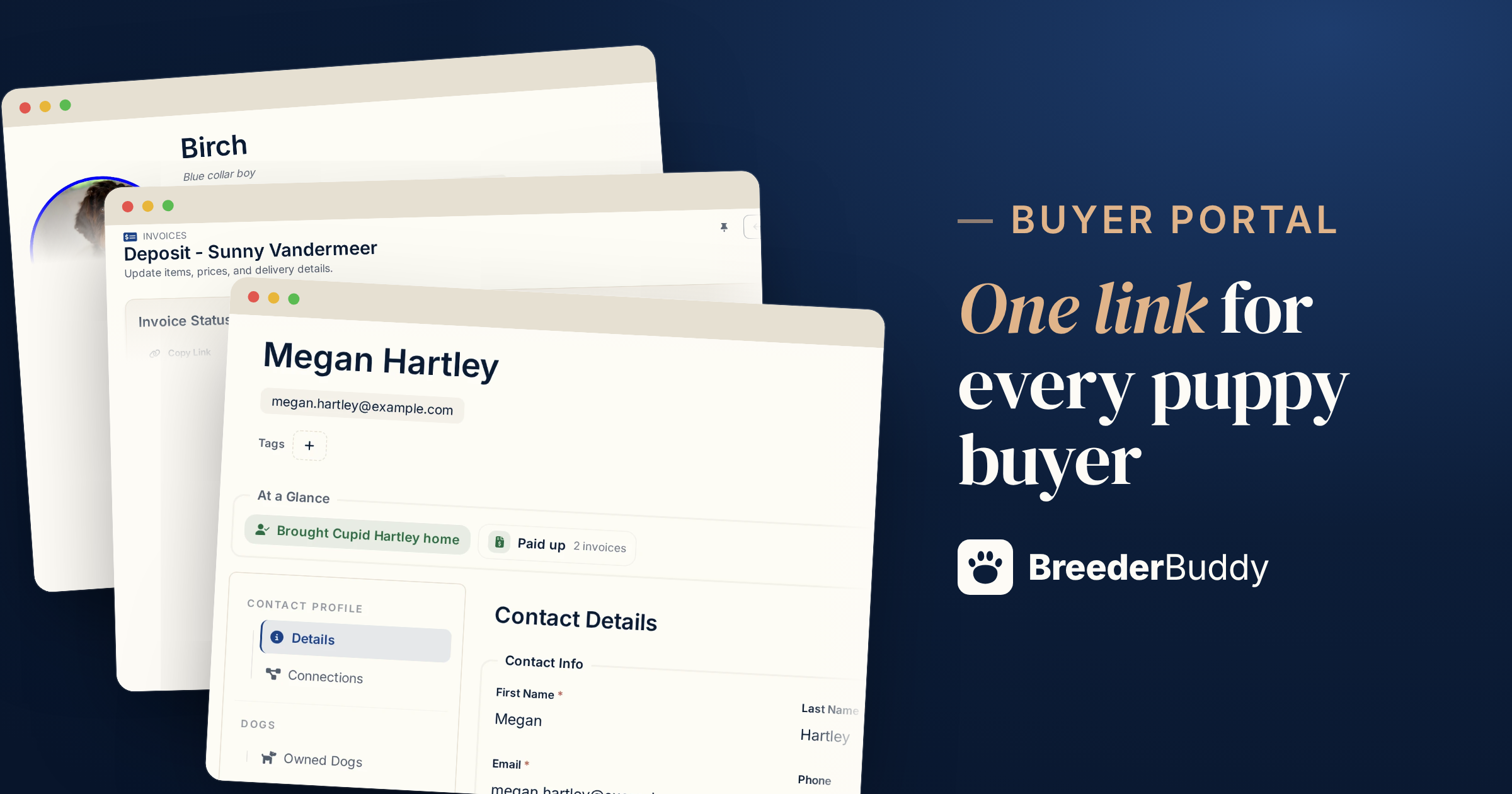
A sale doesn't run on one conversation. A family gets a deposit request in March, a contract in May, puppy photos every week through June, a balance invoice before pickup and a vet record on go-home day. Spread that across texts, email threads and a payment app, and every week someone asks the same question: what do I still owe, and where do I send it?
A puppy buyer portal fixes that by giving each family one private link that holds their side of the sale. This article covers what a good portal should contain, how breeders feed it at each stage (deposit, contract, puppy updates, balance, go-home files), and how the BreederBuddy buyer portal handles each piece, screen by screen.
Why breeders move buyers off email threads
The problem with email threads is that the record of the sale ends up wherever the last message landed.
Your Venmo handle is in a text from February. The contract PDF is attached to a reply that's now forty messages deep. The photos went to a group text. When a buyer asks "did my deposit go through?", you're the only person who can answer, and you have to go digging to do it.
One link per buyer changes who does the looking. The family opens their page and sees the invoice, the payments applied and the remaining balance. The contract is there to sign or download. The puppy's photos are there. You answer "where is it?" with the same link every time, and your inbox stops being the record.
What a puppy buyer portal should hold
A good breeder client portal holds everything the buyer needs to act on, and nothing that's only for you.
In practice that's four things: money (open invoices and a way to pay them), paperwork (contracts to sign and signed copies to keep), the puppy (details and photos), and files (health records, care sheets, the go-home packet). Your private notes, your other buyers, and your breeding records stay out of it.
Here's how the BreederBuddy portal lines up, and where each tab gets its content:
| Portal tab | What the buyer sees | Where it comes from |
|---|---|---|
| Your Dogs | Date of birth, breed, color, microchip, registration numbers, photo gallery | Any dog where this buyer is set as Owner |
| Invoices | Breakdown, payments applied, remaining balance, online payment, your payment handles | Invoices for this contact |
| Contracts | Each contract sent for signing, with status; signed copies to download | Contracts you send them |
| Media | Files to open or download | The buyer's contact Attachments, marked Visible |
A fifth tab, Recommended Gear, appears only if you've published affiliate products. The portal doesn't show a buyer's place on your waitlist, so keep that conversation with them directly.
Opening and sending a buyer their portal
Every contact already has a portal, so there's nothing to turn on; you just open it and share the link.
- Go to Contacts in the left menu and open the buyer.
- Click Open Buyer Portal at the top of their profile.
- The portal opens in a new tab, showing exactly what the buyer sees. Copy the address from your browser's address bar and paste it into a text or email.
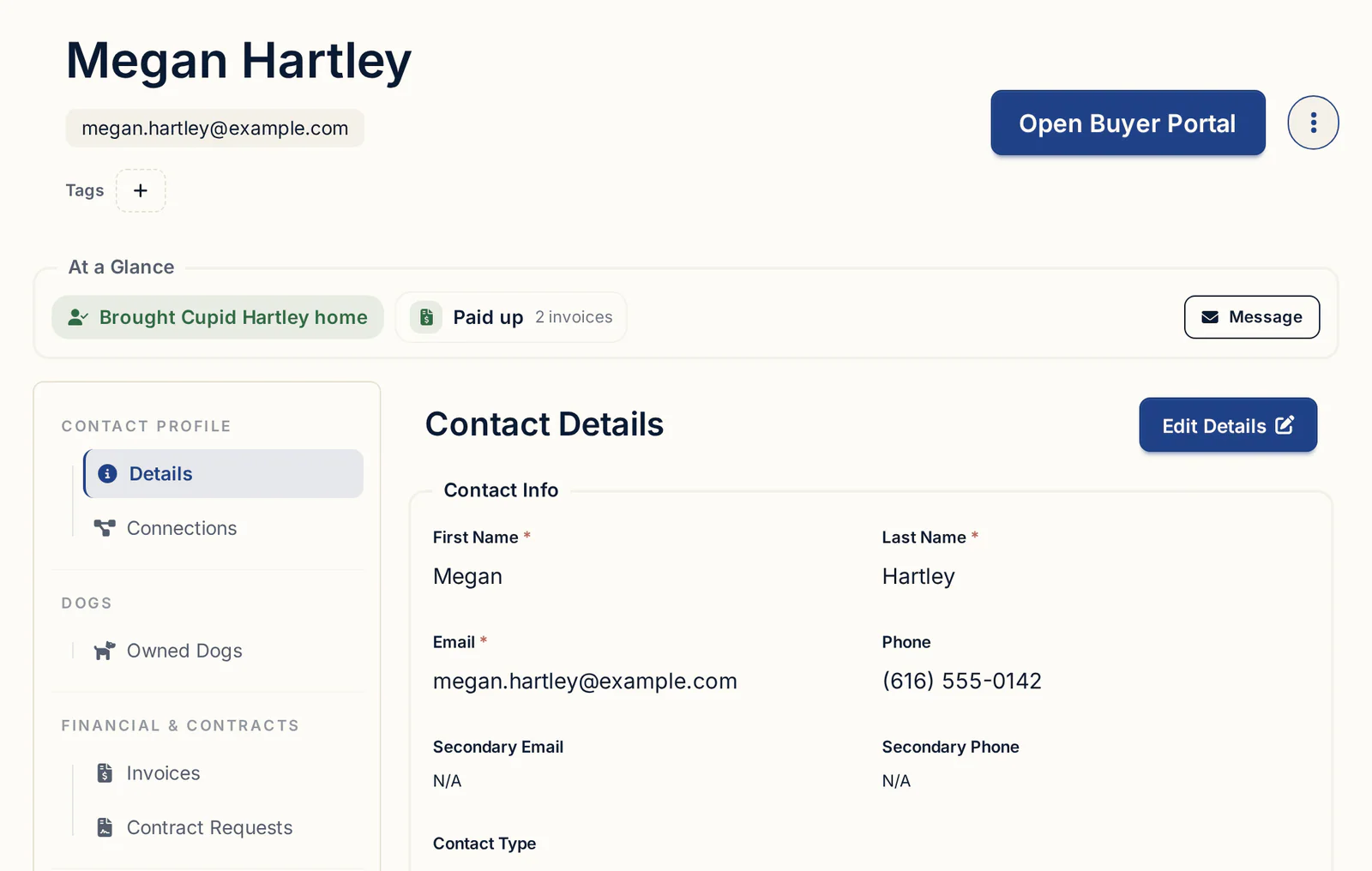
Most buyers never need step 3. Every invoice email you send includes a button to their portal, so the first deposit request is usually how a family finds it. They don't need an account or a password; the link opens their portal directly.
For returning buyers, you can put a login on your own website. Go to Content Manager (under Your Online Presence), scroll to Add Buyer Portal Login to Your Website, click Preview to check it, then click Copy next to the Recommended website link and add it as a button or menu link. Buyers enter the email you have for them, then the 6-digit code BreederBuddy emails them. The code expires after 10 minutes, and they stay signed in on that browser for up to 7 days.
To match your kennel's colors, go to Settings → Branding & Colors and set the Buyer Portal Theme. Your kennel name and profile picture appear on the portal automatically.
Deposits and balances through the portal
The Invoices tab is where a buyer pays a deposit online and checks what's left on the balance.
If online payments are on for an invoice and Stripe is connected, the buyer sees a Pay … Online button. You choose the methods in Settings → Stripe under Accepted Payment Methods: credit and debit cards (which include Apple Pay and Google Pay), ACH bank transfer, Cash App Pay, and buy-now-pay-later options such as Klarna, Affirm and Afterpay, among others. Cards cost 2.9% + 30¢ from Stripe; ACH is 0.8%, capped at $5, and takes about 4 business days to clear. BreederBuddy adds a 0.1% platform fee on online payments and takes no commission on your sales. Turn on Pass Processing Fees to Customer if you'd rather the buyer cover Stripe's fee.
For families who pay you another way, add your details in Settings → Other Payment Methods with Edit Your Payment Handles: Venmo Handle, PayPal Link, Cash App Handle, Zelle Info or Other Payment Instructions. They show on the buyer's invoices in the portal.
Those apps aren't connected to BreederBuddy, so this is the step that keeps the portal honest. When a $500 Zelle deposit lands, open the invoice, click Log Manual Payment, and enter the Amount Paid, Payment Method and Payment Date. Leave Email a receipt to the customer checked if you want them to get a receipt. The balance in their portal updates, and payments you record yourself cost nothing.
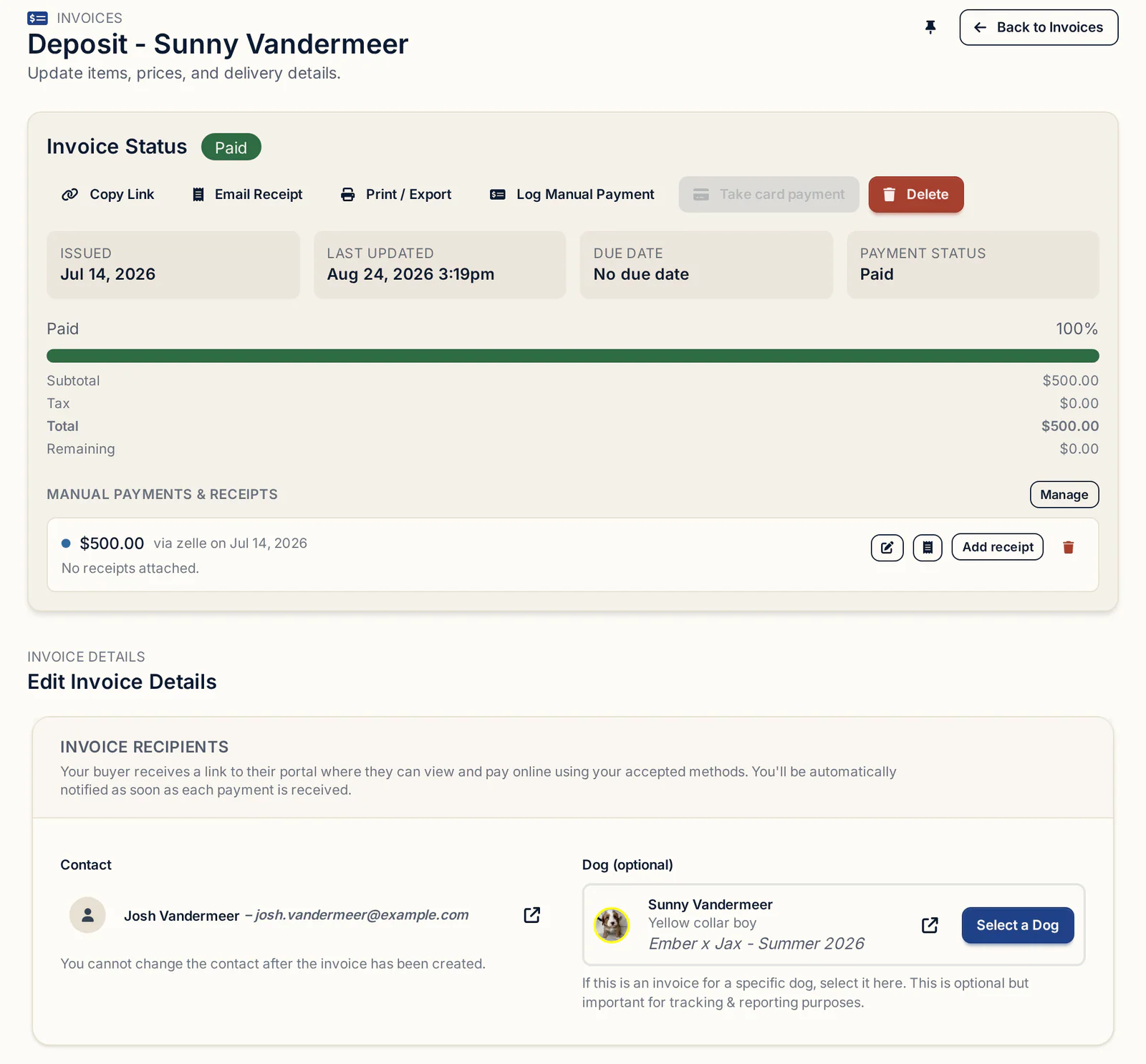
When it's time for the balance, create a new invoice for the full price and click Apply deposit in the yellow Deposit credit available box, so the total shows only what's still owed. More on that flow in puppy deposit tracking.
Contracts and e-signatures
Buyers sign their contract from a secure email link or from the Contracts tab in their portal, with no account needed.
Open a contract template from Contracts (under Sales), click Send Contract to Customer, choose the buyer under Customer, and pick the puppy. The ready-made templates include Puppy Sales & Health Guarantee, Puppy Deposit / Reservation and Spay/Neuter & Limited Registration, among others. They're starting points, not legal advice, so have your attorney review the wording for your state.
If the template has Require email verification for this contract turned on, the buyer enters a 6-digit code from their email first. Then they type their name, and either draw a signature or click Use Typed Signature. The signed PDF ends with an electronic signature record: signer's name and email, signing time, and the IP address and device they signed from.
The signed copy is saved to the buyer's Attachments tab and to the puppy's, and the buyer can download it from their portal. Contracts you send as a preview only don't appear in the portal. The full setup is on contracts and payments.
Puppy photos and updates
To share puppy photos with buyers privately, set the buyer as the puppy's owner and add photos to the puppy's gallery.
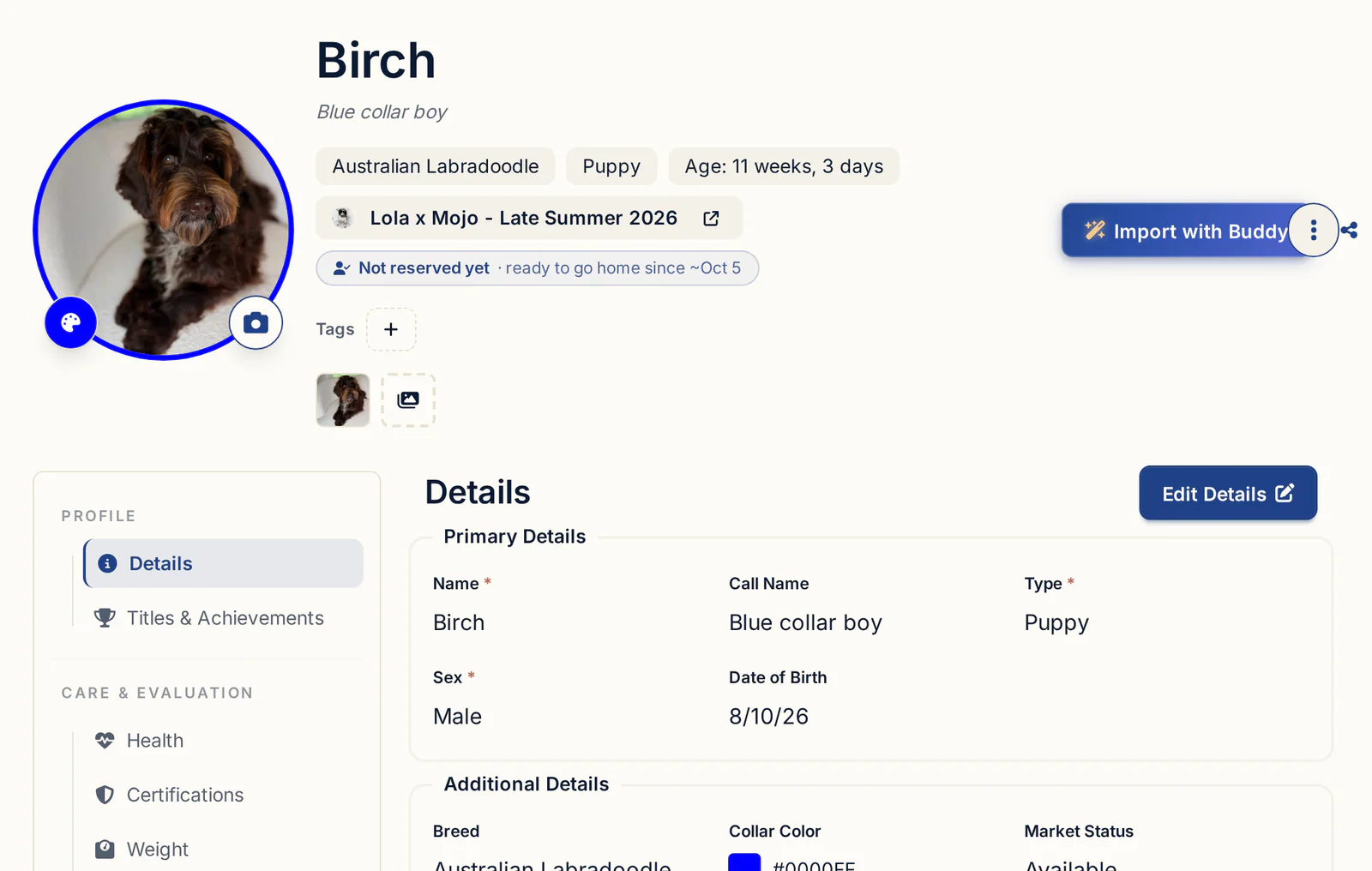
- Open the puppy from Dogs and check its Relationships tab. If it says "No owner assigned.", click Assign Owner and pick the buyer.
- Open the Gallery tab (under Media & Files) and drop in your photos.
- Check each photo's eye button is green (Visible to public). Hidden photos don't show in the portal.
One thing to know before you post the week-five shots: that same eye switch also controls whether the photo appears on your public website. If you want a photo for the family only, a short video or extra photos can go on the buyer's contact under Attachments instead, where they show on the Media tab.
The portal only shows those tabs. Your notes, the puppy's health tab and files attached to the dog stay in your account, and each buyer's link is unique to them, so one family never sees another's page.
Files for go-home day
Share the go-home files through the buyer's contact, a few days before pickup, so the family can read them before the car ride home.
What breeders commonly send: the puppy's health record with vaccine and deworming dates, microchip details, a care and feeding sheet, a copy of the signed contract, and whatever registration paperwork your contract calls for (with limited registration, that may be held until spay/neuter proof arrives). Confirm the health content with your vet. Our go-home packet checklist goes through it item by item.
To put them in the portal:
- Open the buyer in Contacts.
- In their side menu, click Attachments (under Documents & Intake).
- Drag your files into the upload box. Videos, photos, PDFs and documents work, up to 100MB per file.
- Check the Buyer Portal column says Visible. Click it to switch between Visible and Hidden.
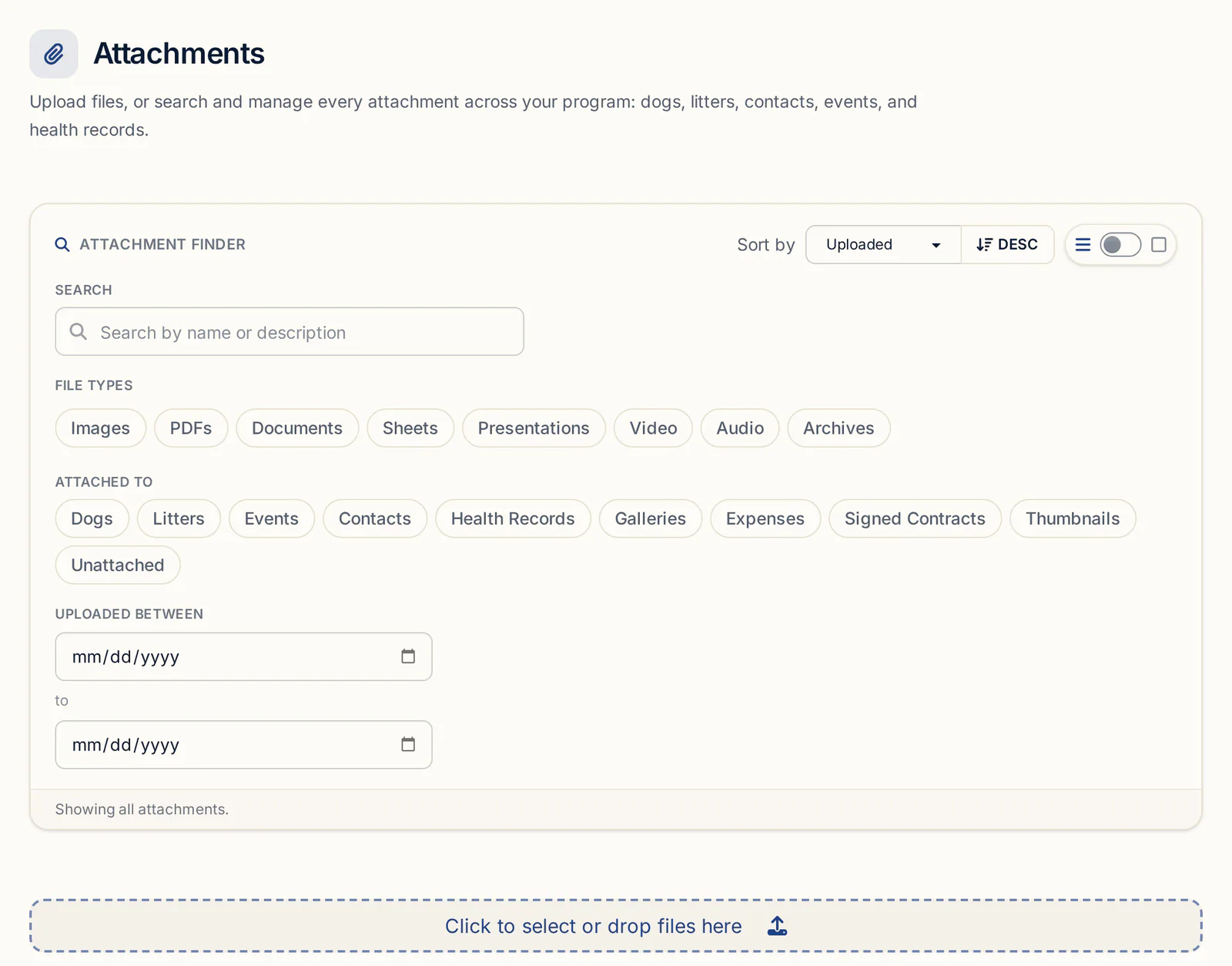
Files on a dog's Health or Attachments tabs don't appear in the portal. To share one, download it from the dog's profile and upload a copy to the buyer's contact. If you can't find it, the library under Document Manager → Your Uploaded Files & Attachments lets you search every file and filter by what it's attached to.
If you recommend crates, food or toys, the Recommended Gear tab can show your affiliate products right alongside the files.
What goes wrong and how to fix it
Most portal problems come from three things: a wrong email, a payment that wasn't logged, or an owner field that wasn't updated.
- "The link doesn't work." Check the email on their contact, since the login code only goes there. Ask them to check spam and use the code within 10 minutes. The fastest fix: click Open Buyer Portal and text them the address.
- "I paid but it still says I owe." A Venmo, Zelle, cash or check payment won't mark the invoice paid on its own. Log it with Log Manual Payment. If an online ACH payment shows Processing, it's still clearing.
- "There's no pay button." If it's greyed out or says Payment Unavailable, check the Online payments switch under Invoice Details and that Stripe is connected.
- The puppy changed, or the buyer moved to a later litter. On an unpaid invoice, edit the dog box under Invoice Recipients and click Save. A fully paid invoice is locked, so leave it as the record of the deposit. Clear the buyer as Owner on the old puppy (Details tab, Edit Details) and assign them on the new one. The portal follows the owner field right away. For moving them between lists, see puppy waitlist software.
- A breeding dog shows in a buyer's portal. That dog's Owner is set to this contact, common with co-owns and guardian homes. Change or clear the Owner box and click Save.
After go-home, the portal stays attached to the buyer's contact, so signed contracts and shared files are still there to download when they need them for the vet or a registration form.
What to look for in a breeder client portal
Hold any breeder client management tool against this list:
- No password for buyers to set up or forget
- Online payment on deposits and balances, plus your own payment handles for off-platform payments
- A way to log cash and app payments so the buyer's balance stays right
- Contracts signed in the same place, with a signature record and a downloadable copy
- Puppy details and photos tied to the actual puppy the buyer owns
- File sharing you control per file, with health records private by default
- Your private notes and other buyers never visible
- Branding with your kennel name and colors
Getting started
The buyer portal, invoices, contracts and attachments are part of every plan, starting with Standard at $30/month or $300/year. Pro, at $60/month or $600/year, adds a kennel website built from your records, where your buyer login link can live. Every plan starts with a 30-day free trial, no credit card required. The rest of the buyer side is on buyer management.
Questions
Do puppy buyers need an account to use the portal?
No. The link in every invoice email opens their portal directly, with no password. If they come in through the login link on your website, they enter their email and the 6-digit code BreederBuddy sends them.
Can buyers pay a puppy deposit online through the portal?
Yes, once Stripe is connected and online payments are on for that invoice. Buyers can pay by card, Apple Pay, Google Pay, ACH bank transfer, Cash App Pay or buy-now-pay-later options you've turned on in Settings → Stripe. Online payments cost Stripe's rate plus a 0.1% platform fee, and you can pass Stripe's fee to the buyer.
How do I share puppy photos with buyers privately?
Set the buyer as the puppy's Owner, then add photos to the puppy's Gallery with the eye button green. That switch also shows the photo on your public website, so for family-only photos or videos, upload them to the buyer's contact Attachments with Buyer Portal set to Visible.
Can I record a Zelle or cash payment so it shows on the portal?
Yes. Open the invoice, click Log Manual Payment, and enter the amount, method and date. The balance in the buyer's portal updates, and you can email them a receipt.
What if a buyer loses their portal link?
Open their contact, click Open Buyer Portal, and send them the address from the new tab. Or give them your website login link from Content Manager, where they sign in with their email and a 6-digit code.
Can buyers see other buyers or my private notes?
No. Each buyer's link is unique to them, and the portal only shows their own dogs, invoices, contracts, files you've marked Visible, and Recommended Gear. Files on a dog's Health or Attachments tabs stay private.
Terms used in this article
- Buyer portal
- A private page for one puppy buyer that collects what they owe, what they've signed, their puppy's details and the files you've shared.
- Deposit
- A payment that holds a buyer's place for a puppy, usually credited against the purchase price when the balance is billed.
- Balance
- What a buyer still owes on a puppy after the deposit and any other payments are subtracted from the price.
- Manual payment
- A payment collected outside the software, such as cash, check, Zelle or Venmo, that the breeder records on the invoice by hand.
- E-signature
- A signature given electronically on a contract, usually backed by a record of who signed, when and from what device.
- Go-home packet
- The paperwork and care information a family takes home with a puppy: health record, care sheet, contract copy and registration details.
In BreederBuddy
- Standard
- $30/month or $300/year. The full management platform: unlimited dogs, litters, and puppies, and multiple user accounts.
- Pro
- $60/month or $600/year. Everything in Standard, plus a template kennel website built from your records.
- Platforms
- Available on the web and as an Android app on Google Play (iPhone and iPad app coming soon).
- Free trial
- 30 days, full access, no credit card required.